
Speed Up Your Linux Startup: Delay Heavy Services with systemd
Optimize Linux boot time by delaying background services with systemd techniques.

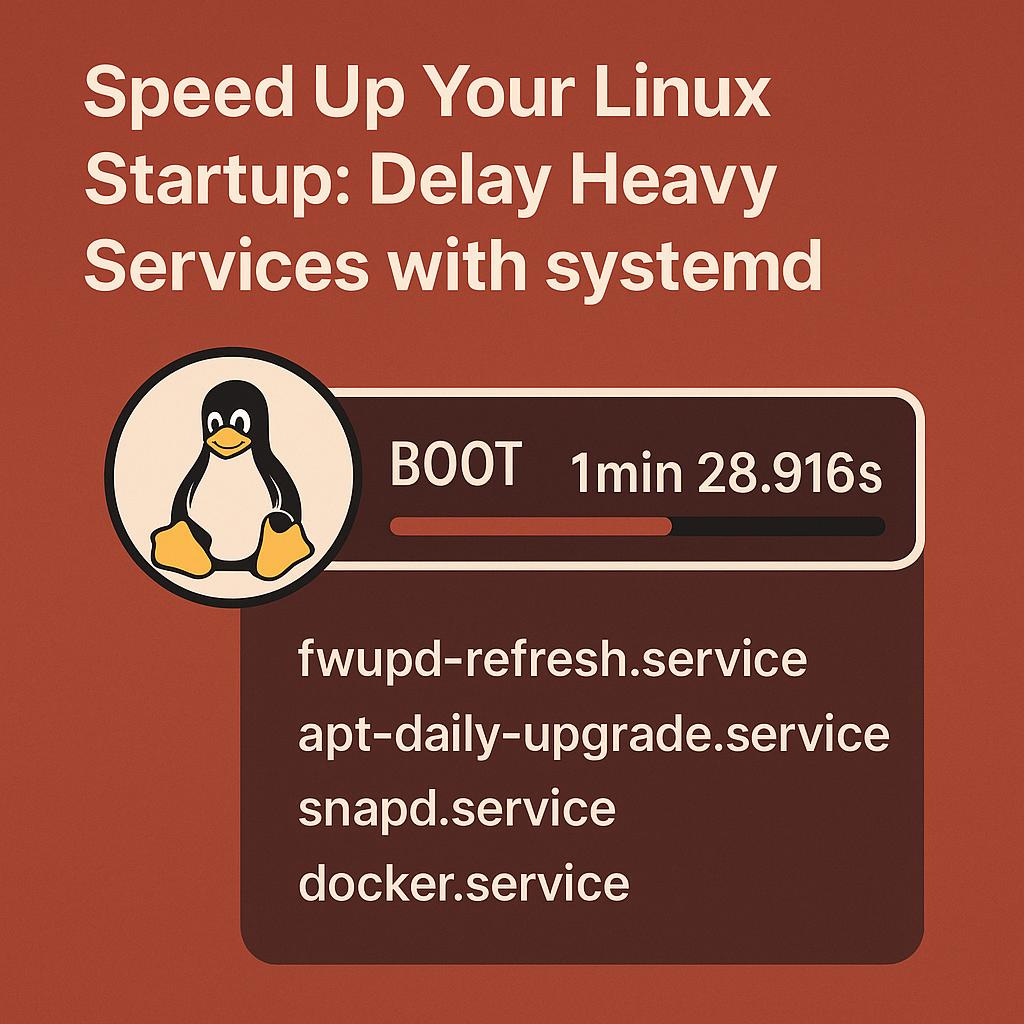
Over time, many Linux users observe a gradual increase in system boot times, frequently attributed to the accumulation of non-essential services configured to launch during the initial startup sequence. As additional software is installed—particularly system utilities, update managers, and container-related services—these background processes may introduce substantial delays without providing immediate utility upon boot. This degradation in performance is especially noticeable on laptops or systems regularly employed for quick, task-oriented use. Rather than disabling services outright, which may compromise system stability, a more effective and reliable approach involves utilizing systemd's timer units and override mechanisms to defer the initialization of resource-intensive services until after the system has completed its boot process.
Analyze the Boot Time
Introduce the problem with actual terminal output:
$ systemd-analyze time

Startup finished in 4.824s (firmware) + 4.357s (loader) + 2.146s (kernel) + 52.443s (userspace) = 63.771s
📌 As shown above, most of the delay comes from the userspace phase, where systemd is starting all services—even those not needed immediately.
Break Down Problematic Services
Use this command to list the slowest services:
$ systemd-analyze blame | head -n 10

1min 28.916s fwupd-refresh.service
   35.824s apt-daily-upgrade.service
    5.397s plymouth-quit-wait.service
    2.316s gpu-manager.service
    2.160s snapd.seeded.service
    2.137s snapd.service
    2.022s thermald.service
    1.429s upower.service
    1.399s nvidia-persistenced.service
    1.093s docker.service
📌 Briefly mention why disabling these services might be unsafe or inconvenient (e.g., missing updates, hardware issues).
Delaying Heavy Services Using systemd Timers
To solve the increasing boot time without disabling important background services, we take advantage of systemd's built-in timer units. Instead of starting heavy services like update managers or background daemons immediately during boot, we configure them to run after the system is fully operational. This defers their execution by a specific duration or event, reducing the load on the boot process and significantly improving startup time. Timers offer a clean, maintainable, and reversible solution that aligns with best practices, especially for services that are not critical during the initial login phase.
⚠️ Warning: Not All Services Should Be Delayed
While delaying non-critical services can significantly improve boot time, it's important to understand that not all services are safe to delay. Core system components like display managers, networking services, security modules (e.g., AppArmor, firewalld), and hardware initialization daemons should remain in the boot path to ensure a stable and secure environment.
This guide focuses only on third-party or background utility services—such as software update checkers, Snapd, Docker, and telemetry tools—that do not directly impact system integrity or security during startup. Always review the purpose of a service before applying delays, especially if you're using hybrid graphics, encryption, or enterprise configurations.
1. Disable the Service from Starting Automatically
First, prevent the service from launching during the boot process:
$ sudo systemctl disable {service name}.serviceThis ensures
systemddoesn't start the service immediately but leaves it available for manual or timer-based activation.
2. Create a Custom Timer Unit for Delayed Start
Now, create a .timer unit to schedule when the service should start. For example, to delay the start of Docker by 30 seconds after boot:
$ sudo tee /etc/systemd/system/{service name}.timer > /dev/null <<EOF
[Unit]
Description=Delayed start for {service name} service

[Timer]
OnBootSec=30s

[Install]
WantedBy=timers.target
EOF
This timer instructs
systemdto wait for 30 seconds after the system has booted before activating the specified service (e.g.,docker.service).Note 1: Replace
{service name}with the exact name of the service you wish to delay — it must match the.serviceunit name exactly (e.g.,docker.service,snapd.service, etc.).Note 2: You can adjust the delay duration by changing the value of
OnBootSec=30sto a higher or lower value, such as15s,1min, or2min 30s, depending on your needs.
3. Reload systemd and Enable the Timer
Finally, apply the changes and enable the timer:
$ sudo systemctl daemon-reexec
$ sudo systemctl daemon-reload
$ sudo systemctl enable {service name}.timer
✅ From now on, {service name} will start automatically — but with a 30-second delay after boot — reducing the userspace load during startup.
Verify the Boot Time Improvement after restart
After configuring the timer and rebooting your system, check the new boot time using:
$ systemd-analyze time
Startup finished in 4.824s (firmware) + 4.357s (loader) + 2.146s (kernel) + 7.443s (userspace) = 18.771s
graphical.target reached after 7.442s in userspace.
You should see a noticeable reduction in the userspace phase duration, especially if you've delayed multiple heavy services. This confirms that your timer-based deferral strategy is working effectively.
✅ Tip: Compare this output with your earlier measurements to evaluate the improvement in boot performance.
Conclusion
Improving Linux boot time doesn’t have to involve risky hacks or permanently disabling essential services. By leveraging systemd's powerful timer and override features, you can safely defer the startup of non-critical services—such as Docker, Snapd, or background update daemons—until after your system is fully booted. This approach maintains system functionality while significantly reducing startup delays, especially in the userspace phase.
Timers offer a clean, reversible, and maintainable way to optimize performance without compromising stability or security. Whether you're a desktop user aiming for faster logins or a developer running multiple background services, this method is both practical and production-safe.